How to start the SSH service on Raspberry PI
SSH on Raspberry Pi OS (formerly Raspbian) is disabled by default for security reasons, so you have to switch it on before you can connect remotely. The quickest way is sudo raspi-config → Interface Options → SSH → Yes. For a headless Pi with no screen, you can instead drop an empty file named ssh onto the boot partition of the SD card and SSH will be enabled on first boot.
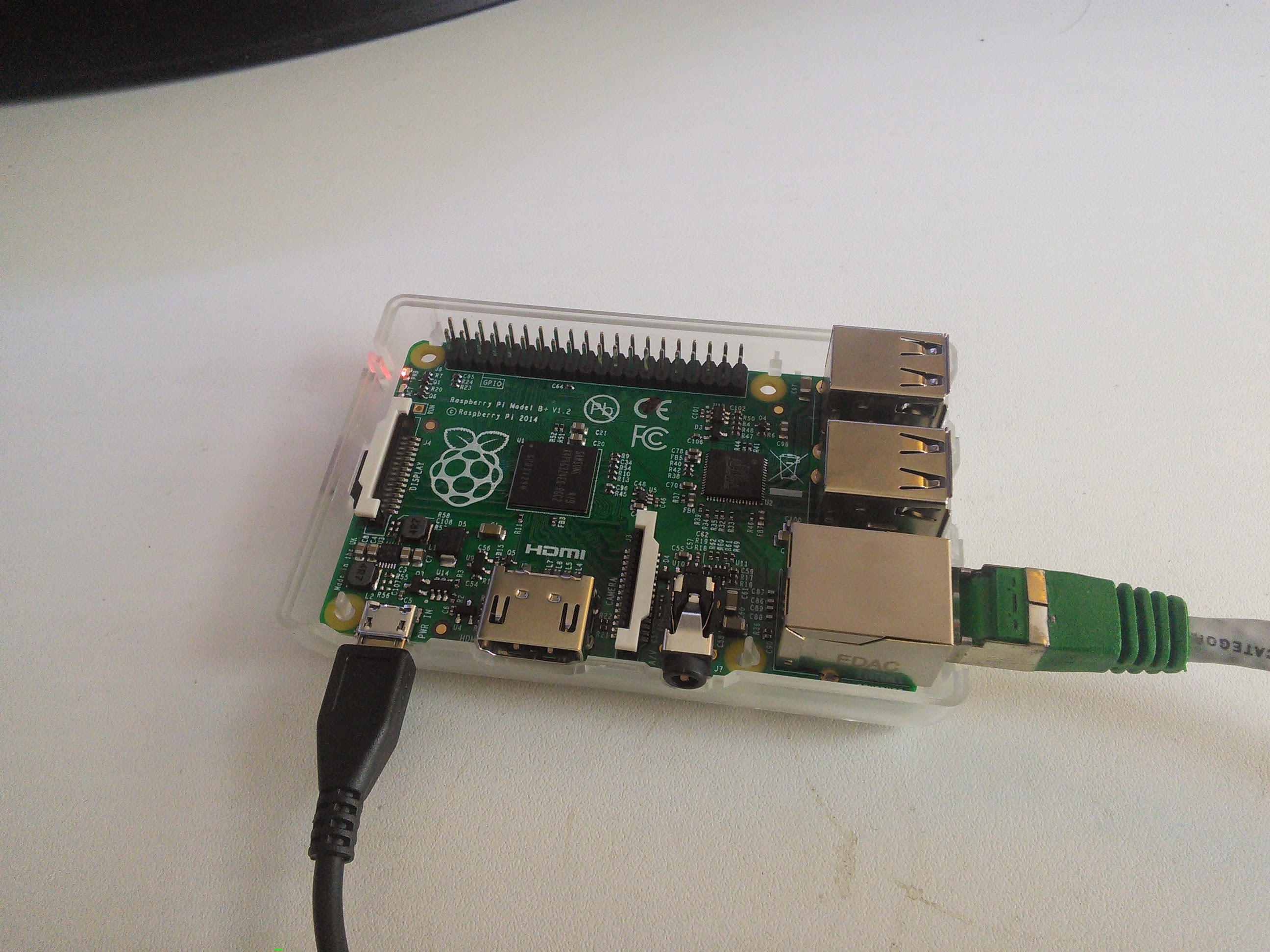
Option 1: Enable SSH with raspi-config
If you have a keyboard and monitor (or serial console) on the Pi, run:
1
sudo raspi-config
On current Raspberry Pi OS, choose Interface Options → SSH → Yes. On older releases the same setting lives under Advanced Options → SSH. Exit raspi-config and the service starts immediately.
Option 2: Enable SSH headless (no monitor)
For a Pi with no display you do not need to boot into the desktop at all. After flashing the SD card, open the small boot partition on your computer and create an empty file called ssh with no extension:
1
touch /Volumes/boot/ssh      # macOS / Linux
On Windows, create a new empty file named ssh in the boot drive. When the Pi boots it detects the file, enables SSH, then deletes it. The Raspberry Pi Imager tool can also pre-enable SSH (and set a username and password) under its advanced options.
Option 3: Enable the service directly
If you are already logged in, enable and start the service with systemd:
1
2
sudo systemctl enable ssh
sudo systemctl start ssh
Connecting and verifying
From another machine on the same network:
1
ssh [email protected]
If the .local (mDNS) name does not resolve, use the Pi’s IP address instead. Confirm the service is listening on the Pi with:
1
sudo systemctl status ssh
A note on security
Before relying on SSH, change the default password — or better, set up key-based authentication and disable password login. Never forward port 22 directly to the internet without key authentication, and ideally put a firewall or VPN in front of it.